
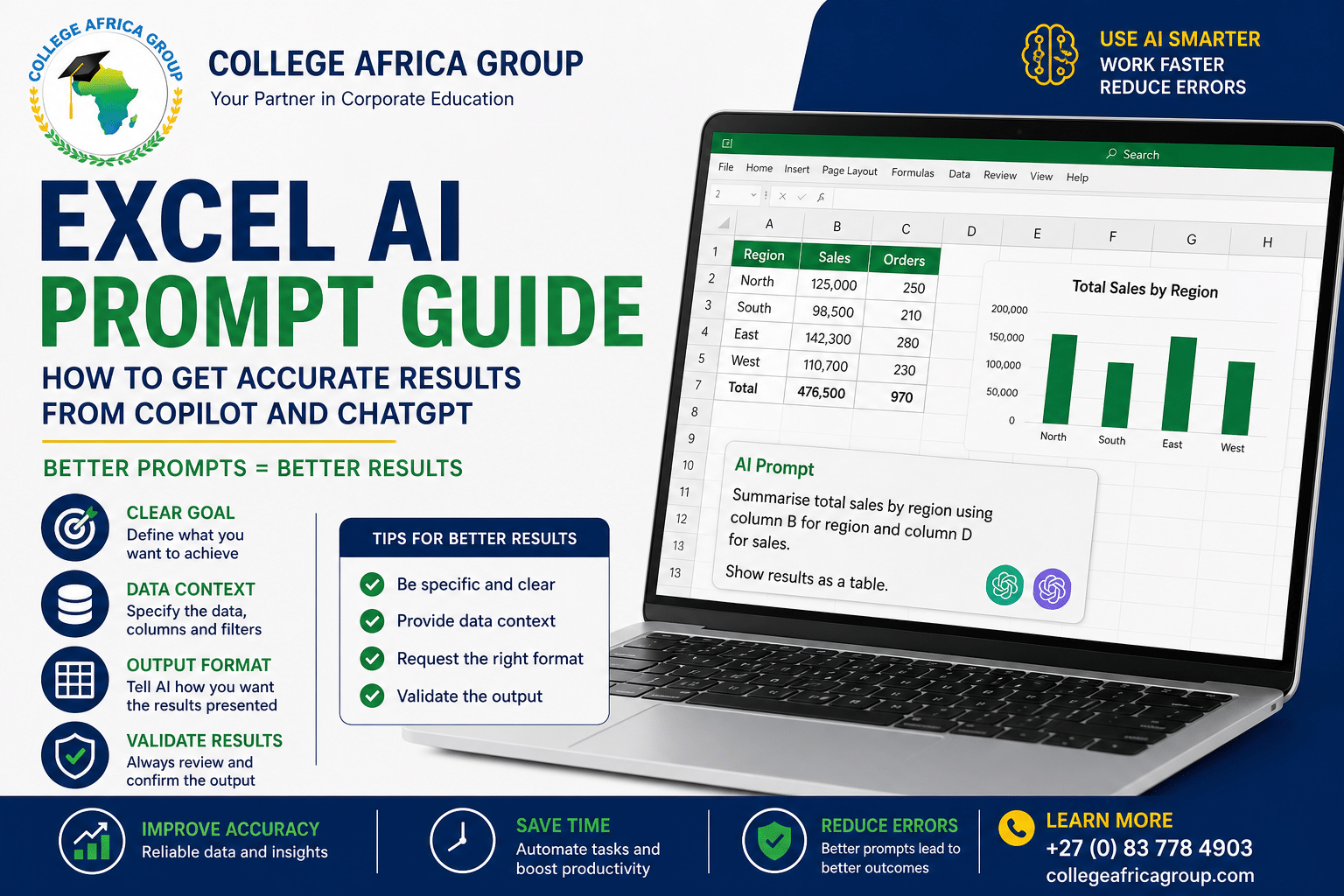
Excel AI Prompt Guide: How to Get Accurate Results from Copilot and ChatGPT
Excel AI Prompt Guide: How to Get Accurate Results from Copilot and ChatGPT
Using AI tools like Copilot and ChatGPT in Excel can significantly improve productivity — but only if prompts are structured correctly. Poor prompts often lead to incorrect results, missing data, or misleading summaries.
As outlined in our guide on
types of errors in Excel, many issues originate from incorrect assumptions and poor data handling.
Better prompts = better results.
 Why AI Gets Excel Results Wrong
AI tools do not verify data — they generate responses based on patterns. This means outputs may appear correct but contain hidden errors.
- Incorrect assumptions about data
- Missing rows or filters
- Wrong formula logic
- Static outputs instead of formulas
See how this differs across tools in our comparison of
Copilot vs ChatGPT in Excel.
📥 Download the Excel AI Prompt Guide Download 4 to learn how to structure better prompts for Microsoft Copilot and ChatGPT, improve Excel reporting accuracy, and reduce AI-generated formula and data errors in the workplace.
The Structure of a Good Excel AI Prompt
To improve accuracy, prompts should always include three key elements:
- Clear goal: What you want to achieve
- Data context: What the data represents
- Output format: How the result should be presented
Example of a Weak Prompt
“Summarise this data”
Example of a Strong Prompt
“Summarise total sales by region using column B for region and column D for sales. Show results as a table.”
Common Prompting Mistakes in Excel
- Vague instructions
- Missing data references
- Assuming AI understands context
- Not specifying output format
Prompting for Excel Formulas
AI tools can assist in generating formulas, but users must validate them.
- Ask for the formula AND explanation
- Test results manually
- Ensure ranges are correct
Using AI Safely in Excel
When working with sensitive or business-critical data, always follow governance principles.
- Do not share confidential data
- Validate all outputs
- Use AI as a support tool, not a decision-maker
Workplace Application of AI Prompting
In finance, HR, and operations, structured prompting can significantly improve efficiency while reducing errors. Teams that apply consistent prompting frameworks produce more reliable outputs and reduce the risk of incorrect reporting.
Excel AI Prompt Checklist
- Define the objective clearly
- Specify the data range or columns
- Request output format (table, summary, formula)
- Validate results before use
Additional Articles in the Series with Free Download Guides
Workplace Examples of AI Prompting in Excel
In a corporate environment, the quality of prompts directly impacts the accuracy of Excel outputs. In finance teams, a common task is summarising monthly revenue.
A vague prompt such as “summarise sales” may result in incomplete or misleading outputs. A stronger prompt would be: “Summarise total monthly revenue by region using column B for region and column D for revenue, and present results in a table.”
This level of clarity ensures that the AI tool works with the correct data structure.
In HR departments, AI is often used to analyse employee data.
For example, instead of asking “analyse staff data,” a better prompt would be: “Calculate average salary by department using column C for department and column F for salary, and highlight the highest and lowest values.” This reduces ambiguity and improves reliability.
Operations teams also benefit from structured prompts when working with logistics or performance data. Clear instructions around columns, filters, and expected outputs help prevent errors and improve efficiency.
Across all departments, the principle remains the same: well-structured prompts lead to accurate results, while vague prompts increase the risk of errors.
Download Excel AI Prompt Guide
Learn how to structure prompts for accurate results in Excel using Copilot and ChatGPT.
📞 +27 (0) 83 778 4903
For additional guidance on using AI tools, see
Microsoft Copilot documentation.
For practical guidance on writing effective AI prompts, see
AI prompt engineering best practices.
Excel AI Prompt FAQs
Q: What is an AI prompt in Excel?
A: It is an instruction given to AI tools to generate results or analysis.
Q: Why do prompts matter?
A: Better prompts lead to more accurate outputs.
Q: Can AI generate Excel formulas?
A: Yes, but they must be validated before use.
Q: Is AI reliable for Excel tasks?
A: AI can assist, but users must verify all results.
For official Excel guidance, refer to Microsoft’s
Excel help and learning resources.
For additional AI prompting insights, see
Microsoft Copilot documentation.
⚖️ This solution is designed to remain POPIA-appropriate when implemented correctly.

You may also like